SAP Business Network SCC for Suppliers: How to Confirm POs, Create ASNs & Commit Forecasts
Step-by-step SAP Business Network SCC guide for suppliers: confirm POs, create ship notices (ASNs), commit forecasts and fix common errors.
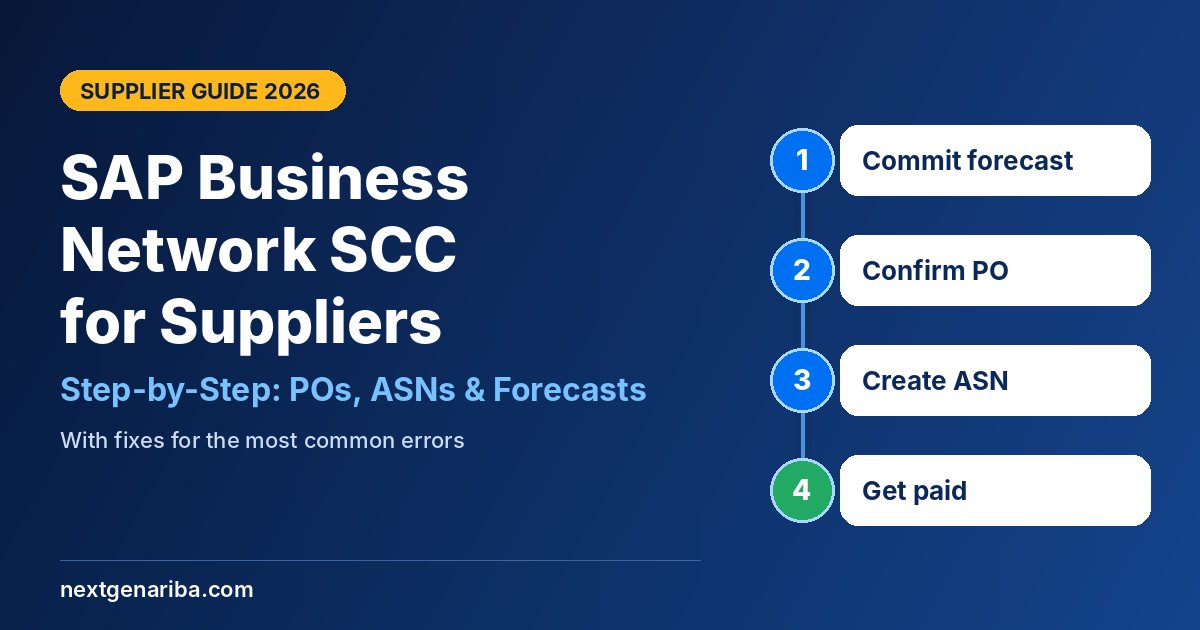
If your customer has asked you to work in SAP Business Network Supply Chain Collaboration (SCC), you will be doing three things again and again: confirming purchase orders, creating ship notices (ASNs), and committing to forecasts. Each one takes a few minutes once you know where the buttons are.
This step-by-step guide is written for suppliers. It walks through each task in the SAP Business Network supplier account, explains the errors suppliers hit most often, and shows how to save time with bulk confirmations and Excel uploads.
Before you start: screen names and available options depend on how your customer has set up their transaction rules. If a button described below is missing, your customer has probably not enabled it. Contact their supplier enablement team rather than SAP.
What you need before you start
- An SAP Business Network supplier account linked to your customer (you received an invitation or trading relationship request).
- The right user role. Your account administrator must give you permission to view orders, create order confirmations and create ship notices.
- Your customer's supplier guide. Most buyers publish their own rules, for example how quickly you must confirm, allowed date and quantity tolerances, and whether partial shipments are allowed.
- Your connection method. Small and mid-size suppliers usually work in the web portal or with Excel/CSV uploads. High-volume suppliers often connect via EDI or cXML so documents flow straight from their own ERP.
The SCC document flow at a glance
| Step | Buyer sends | Supplier responds with | Why it matters |
|---|---|---|---|
| 1 | Forecast | Forecast commit | Buyer can plan production on realistic supply |
| 2 | Purchase order or scheduling agreement release | Order confirmation | Locks in quantities, dates and backorders |
| 3 | — | Ship notice (ASN) | Buyer's warehouse can plan receiving |
| 4 | Goods receipt | Invoice | Matches what was shipped and received, so you get paid faster |
How to confirm a purchase order in SAP Business Network
You have two options. Use Confirm Entire Order when you can deliver everything as requested. Use Update Line Items when you need to change quantities, dates or backorder part of a line.
Option 1: Confirm Entire Order
- Log in and go to Workbench > Orders.
- Find the order and open it (or use the actions menu next to it).
- Click Create Order Confirmation and choose Confirm Entire Order.
- Enter a Confirmation Number and fill in the required header fields (marked with an asterisk), such as estimated shipping and delivery dates.
- Click Next, review the summary, and click Submit.
The order status changes to Confirmed.
Option 2: Update Line Items (partial confirmations and backorders)
- Open the order and click Create Order Confirmation > Update Line Items.
- Fill in the confirmation number and header dates.
- For each line, enter the quantity in Confirm, Backorder or Reject (reject only if your customer allows it).
- Click Details on a line to change the delivery date for that quantity.
- Click Next, review and Submit.
Tip: if the order has several schedule lines with different delivery dates, use Confirm Based on Schedule Lines so each date is confirmed separately.
Confirm many orders at once
- Use Items to Confirm in the Workbench to filter open lines and confirm several items in one go.
- For high volumes, use the Excel/CSV mass upload: download the latest template, fill in only the lines you are confirming, upload, and check the audit log for errors.
How to create a ship notice (ASN) in SAP Business Network SCC
An advance ship notice tells your customer exactly what is on its way. In most setups you can only create an ASN after the order has been confirmed.
- Go to Workbench > Orders and open the confirmed order.
- Click Create Ship Notice.
- Complete the Ship Notice Header: packing slip ID (often called Supplier Reference), shipping date, delivery date, carrier and tracking number if required.
- In the Items section, enter the Ship Qty for each line. Click Remove to leave a line out of this shipment (this does not change the PO).
- Add Batch ID, serial numbers or hazardous-material details where required, using Details on each line.
- Click Next, check the summary, then Submit.
Partial shipments: create one ASN per shipment and enter only the quantity you are actually sending. The remaining quantity stays open for your next ship notice.
Service lines: you cannot create an ASN for service items. Create a service entry sheet instead.
How to commit to a forecast in SCC
When your customer shares forecasts, you can see their expected demand by week or month and tell them how much you can supply.
- Open the Planning area of your account (on many accounts this appears as a Forecast tile or tab in the Workbench).
- Filter by customer, plant or material and open the forecast.
- Review the buyer's requested quantities for each period.
- Enter your Commit quantity for each period. Where you cannot meet demand, commit what you can and add a comment.
- Save and submit. For many materials, use the Excel download and upload to update commits in bulk.
Your customer sees gaps between demand and commits and can react early, for example by moving orders or finding extra capacity.
Common SCC supplier errors and how to fix them
| Problem | Likely cause | Fix |
|---|---|---|
| Create Ship Notice button missing | Order not confirmed yet, or the customer does not allow ASNs for this order type | Confirm the order first; check your customer's rules |
| Date or quantity change rejected | Change is outside the tolerance your customer set | Stay within tolerance or contact the buyer before confirming |
| Cannot submit confirmation | Not every requested line has been confirmed or backordered | Account for each line's full quantity |
| Split quantities error | Split lines do not add up to the original quantity | Make confirm + backorder + reject equal the line total |
| Mass upload fails | Old template, or unchanged lines left in the file | Download the latest template, delete lines you are not confirming, fix lines in the audit log and re-upload |
| Confirmation stuck "awaiting buyer response" | Your change needs buyer approval | Filter Items to Confirm by items awaiting buyer response and follow up with the buyer |
7 tips to become a top-rated SCC supplier
- Confirm fast. Many buyers measure confirmation within 24–48 hours.
- Never skip the ASN. Buyers use it to plan receiving, and missing ASNs often delay invoice matching and payment.
- Use one ASN per physical shipment with accurate quantities and batch numbers.
- Update confirmations when plans change instead of silently shipping late.
- Set up email notifications for new orders, changes and forecast updates.
- Move to bulk upload or integration once you handle more than a handful of orders a week.
- Watch your scorecard. Customers increasingly track OTIF, confirmation rate and ASN accuracy. See which supplier collaboration KPIs buyers track.
For buyers: making SCC easy for your suppliers
If you are the buying organisation, supplier adoption decides whether SCC succeeds. Publish a short supplier guide with screenshots of your configuration, keep tolerances realistic, start with a pilot group, and offer Excel upload for small suppliers. Our SAP Business Network SCC complete guide covers configuration, S/4HANA integration and the rollout roadmap, and our comparison of supply chain collaboration software shows how SCC compares with alternatives.
Frequently asked questions
Is SAP Business Network free for suppliers?
Suppliers can use a free standard account to respond to customers. Enterprise accounts with more features and integration may involve fees depending on document volume and the customer relationship.
Why can't I create a ship notice in SAP Business Network?
The most common reasons are that the order has not been confirmed yet, the order contains only service lines, or your customer's transaction rules do not allow ship notices for that order.
How do I change an order confirmation that I already submitted?
Open the order and use Update Line Items (or Actions > Update line item on confirmed lines) to reconfirm with the new quantity or date, as long as your customer's rules allow changes.
Can I confirm scheduling agreement releases in SCC?
Yes. Open the scheduling agreement release and use Create Order Confirmation in the same way as for a purchase order, confirming each schedule line's quantity and date.
What is the difference between SAP Ariba SCC and SAP Business Network SCC?
They are the same solution. SAP renamed Ariba Network to SAP Business Network, so SAP Ariba Supply Chain Collaboration is now called SAP Business Network Supply Chain Collaboration.
Need help with SAP Business Network SCC?
Whether you are a buyer rolling out SCC or a supplier connecting your ERP, Next Gen Ariba can help with SAP Ariba implementation, integration and support and supplier enablement. Book a free consultation.